eSIM technology has made it easier than ever to stay connected without inserting a physical SIM card. Whether you’re traveling abroad, switching carriers, or using a secondary line for work, an eSIM offers flexibility and convenience.
But after installing an eSIM, many iPhone users ask the same question: “How do I know if my eSIM is activated ?”
Fortunately, checking your eSIM status only takes a few minutes. In this guide, you’ll learn how to activate eSIM on iPhone, verify whether it’s working correctly, troubleshoot common issues, and ensure you’re ready to make calls, send messages, and use mobile data.
What Is an eSIM?
An eSIM (Embedded SIM) is a digital SIM built directly into your iPhone. Instead of inserting a physical SIM card, you simply download your mobile plan from your carrier or eSIM provider.
An eSIM lets you:
- Activate a mobile plan digitally
- Use multiple phone numbers on one iPhone (supported models)
- Switch between carriers without changing SIM cards
- Easily add travel data plans
- Reduce the risk of losing or damaging a physical SIM
Many modern iPhones support both a physical SIM and one or more eSIMs, depending on the model and region.
How to Check eSIM Status on iPhone

If you’re wondering how to check eSIM status on iPhone, follow these steps:
Step 1: Open Settings
Tap the Settings app on your iPhone.
Step 2: Go to Cellular or Mobile Data
Depending on your region and iOS version, tap:
- Cellular, or
- Mobile Data
Step 3: View Your SIMs
You’ll see all available SIMs on your device.
If your eSIM appears with your carrier name and shows as On or Active, your eSIM has been successfully activated.
If it appears as No Service, Activating, or Inactive, additional steps may be required.
How to Know if eSIM Is Activated
There are several ways to confirm how to know if eSIM is activated.
Check Signal Bars
If your eSIM is active, you’ll see signal bars for your mobile network at the top of your screen.
Mobile Data Works
Turn off Wi-Fi and browse a website.
If mobile data works, your eSIM is active.
Make a Test Call
Try calling a friend or family member.
If the call connects successfully, your eSIM is working properly.
Send a Text Message
Send an SMS to verify your line is active.
Check Carrier Information
Go to:
Settings → Cellular → Your eSIM
You should see:
- Carrier name
- Phone number
- Mobile plan status
- Voice & Data settings
How to Activate eSIM on iPhone

If your eSIM isn’t active yet, here’s how to activate eSIM on your iPhone.
Method 1: Scan a QR Code
Many providers send a QR code after purchase.
To activate:
- Open Settings
- Tap Cellular
- Tap Add eSIM
- Choose Use QR Code
- Scan the QR code
- Follow the on-screen instructions
Within a few minutes, your eSIM should activate.
Method 2: Carrier App
Some carriers allow activation directly through their mobile apps.
Simply:
- Install the app
- Sign in
- Select Activate eSIM
- Follow the prompts
Method 3: Manual Activation
If your provider supplies activation details instead of a QR code:
- Tap Settings
- Select Cellular
- Tap Add eSIM
- Choose Enter Details Manually
- Input the information provided by your carrier
Why Your eSIM May Not Be Activating
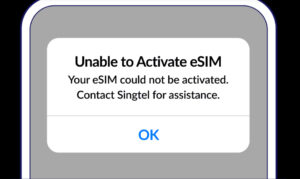
Sometimes activation doesn’t complete immediately.
Common reasons include:
Poor Internet Connection
Your iPhone needs a stable Wi-Fi connection during setup.
Incorrect QR Code
Expired or previously used QR codes won’t activate.
Carrier Delay
Some mobile providers require additional verification before activation.
Unsupported Device
Older iPhone models don’t support eSIM.
Outdated iOS Version
Update your iPhone to the latest version for the best compatibility.
Tips for a Smooth eSIM Activation
To avoid activation issues:
- Connect to stable Wi-Fi.
- Update your iPhone before installing the eSIM.
- Scan the QR code in a well-lit area.
- Restart your iPhone after activation.
- Keep your activation email until setup is complete.
These simple steps can save time and reduce troubleshooting later.
Why Choose Nexar for eSIMs?
At Nexar, we provide affordable and reliable eSIM solutions for travelers, remote workers, and everyday users.
When you buy your eSIM from Nexar, you benefit from:
- Instant eSIM delivery
- Fast activation
- Coverage in multiple countries
- Affordable pricing
- Reliable network partners
- Easy installation guides
- Responsive customer support
Whether you’re traveling for business or leisure, Nexar helps you stay connected wherever you go.
Planning your next trip? Read our guide on Why Your eSIM Is Not Activating and How to Fix It in Nigeria for practical troubleshooting tips.
Common eSIM Activation Mistakes
Avoid these common errors:
- Scanning the QR code multiple times
- Deleting the eSIM before activation finishes
- Turning off Wi-Fi during setup
- Using an unsupported iPhone model
- Ignoring carrier activation instructions
Taking your time during installation helps ensure a smooth experience. For Apple’s official instructions on setting up and managing eSIM on supported iPhone models, visit the Apple Support guide for using eSIM on iPhone.
Final Thoughts
Learning how to activate eSIM on iPhone and verify that it’s working is an important step toward enjoying reliable mobile connectivity without a physical SIM card.
By following the steps in this guide, you can quickly check eSIM status on iPhone, confirm that your plan is active, and troubleshoot common issues if needed.
If you’re looking for reliable, affordable, and travel-friendly eSIM solutions, Nexar offers everything you need to get connected in just a few minutes.
Frequently Asked Questions
- How do I know if my eSIM is activated on my iPhone?
Go to Settings → Cellular (or Mobile Data). If your eSIM shows your carrier name and is marked as active with signal bars, it has been successfully activated.
- How can I check eSIM status on iPhone?
Open Settings, tap Cellular, and select your mobile plan to view its activation and connection status.
- Why isn’t my eSIM activating?
Common reasons include poor internet connectivity, incorrect QR codes, carrier activation delays, unsupported devices, or outdated iOS software.
- Can I use both a physical SIM and an eSIM?
Yes. Most modern iPhone models support Dual SIM functionality, allowing you to use both simultaneously (availability depends on model and region).
- Do I need internet to activate an eSIM?
Yes. A stable Wi-Fi or internet connection is typically required during the activation process.
Leave a Reply